Congratulations again on your application, which improves year after year. We have a feature request for the POWER SAVER Package. Is it possible to have the same POWER SAVER applied to multiple SETUPS, so that only one modification is needed when opening hours change? The screens in our store are all subject to the same opening hours, so each change has to be made to each POWER SAVER individually. Also, would it be possible to manage exceptional closing days? Imagine being able to enter a date on which the devices would be systematically switched off (or in standby mode), regardless of the POWER SAVER. We have public holidays in France. Thank you.
Hm. Request makes total sense, but it’s unfortunately not possible within the setup configuration itself. The power saver is a packages that, in your case, together with the HD player package forms a setup. The configuration for that setup is part of the setup, not the individual packages of that setup. The way the configuration data is structured doesn’t allow having a single package’s configuration mirrored across multiple setups.
But there is actually a solution for all of that: You can use setup scheduling. The general idea is to remove the individual power-saver packages from all your setup. So by default, when assigned, those setups would always show their content. To turn off your display you can then use a setup schedule. Those allow you to switch between different setups based on various scheduling settings. To turn off a display, you’d schedule a setup only containing the power saver with it set to always turn off the display. So instead of having the package make the power saving decision, you instead let info-beamer switch between your content and a setup that always blanks your displays.
Here’s how you can do that:
-
Create a new setup based on the power saver package and configure it to always power off (so all squares turned red). Name that setup “Blank screen”. No need to assign it to a device yet.
-
Create a new schedule that will blank your displays:
https://info-beamer.com/schedules → Create setup schedule → Give it the name “Blank” and select the “Blank screen” setup (for this use case it actually doesn’t matter which setup you select here, so using the “Blank screen” is ok) -
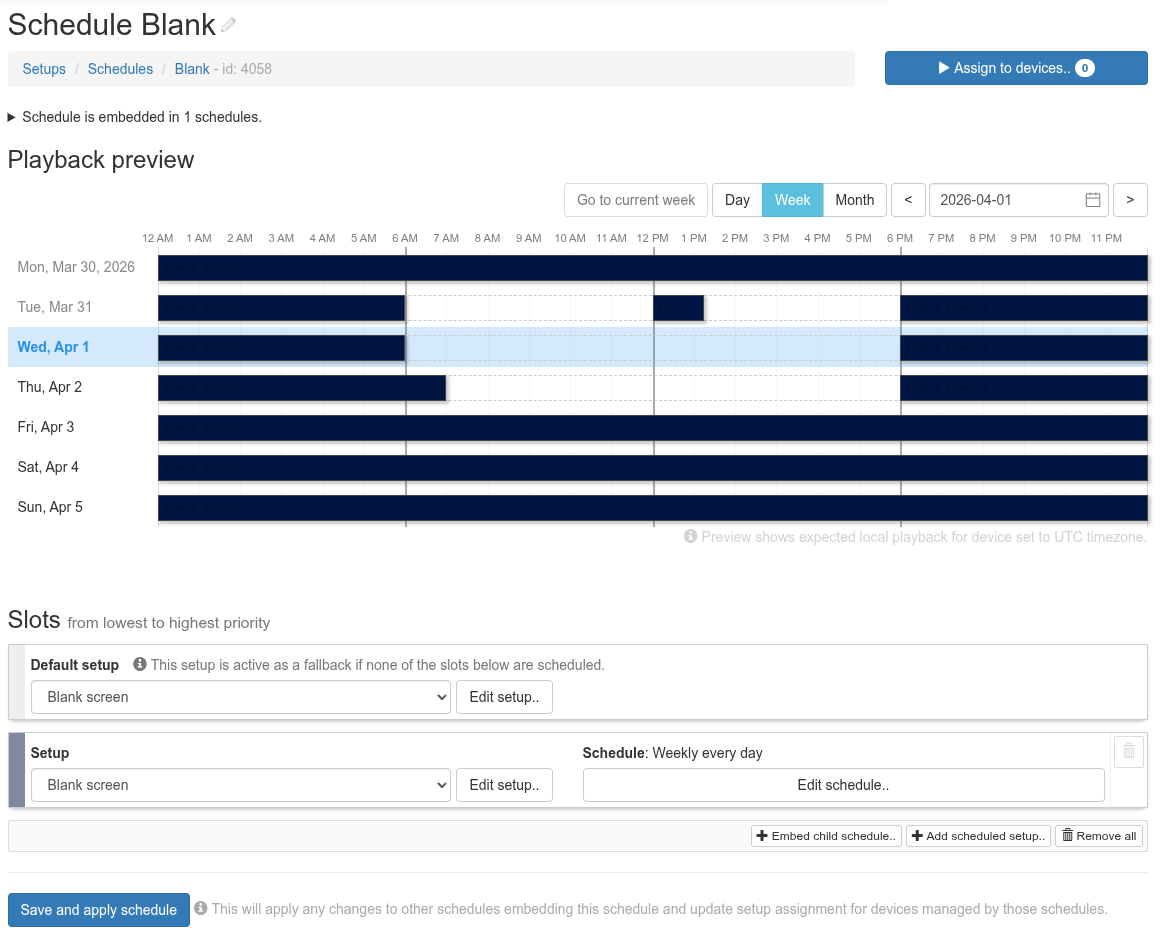
Now configure when to blank the display: Click on Add schedule setup, then select the “Blank screen” setup again. In the scheduling dialog, select all the time ranges (click and drag) when your screen should blank. By default those rules are repeated weekly. When done, click on Add scheduled setup and you’ll return back to the schedule overview. It should look something like this:
-
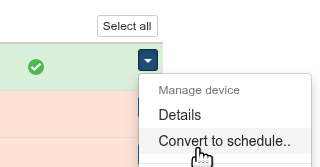
Next, go the the device list. Select the first device you want to switch over to this new method. In the small dropdown menu on the device’s row, click on “Convert to schedule..” and confirm.
This will take the currently running setup for that device, create a new setup schedule that always plays this setup and assigns that setup schedule to the device. Nothing will change on the device itself as a result.
-
On the device’s row is a new info text beneath the currently running setup. Follow the link next to “Assigned by schedule …”

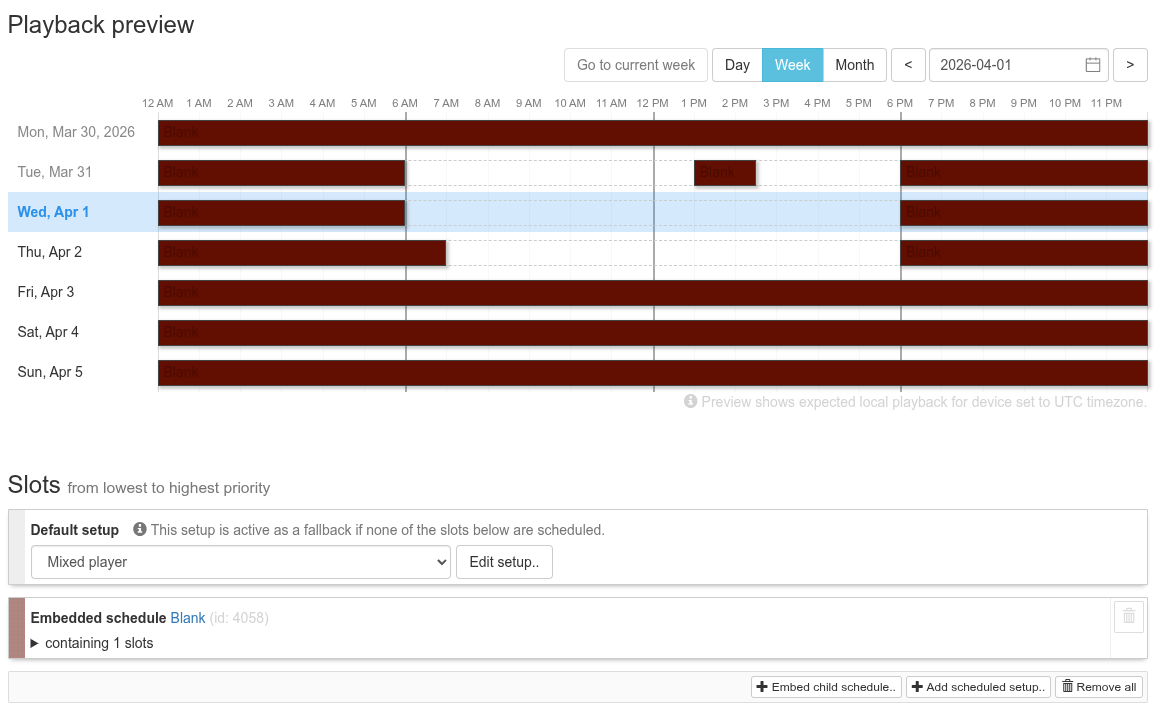
.. to go to schedule that now controls which setup is running on the device.On the schedule page, click on Embed child schedule and select the “Blank” schedule. It should look something like this:
Basically this is now a schedule that always plays the default setup (the one showing your content). But then, thanks to embedding the Blank schedule, its “Blank screen” setups will be overlaid on top of that and take precedence, resulting in a turned off display when scheduled.
-
If you now save the schedule, the device will automatically switch between your initial setup, responsible for showing content, and the “Blank screen” setup that always blanks the screen.
The neat thing is, you can repeat the process starting with step 4) for other devices. If you embed the same “Blank” schedule, any change you make to that schedule will automatically propagated to all other schedules.
And you can now easily add exceptions for a single day by going to the “Blank” schedule, clicking on “Add scheduled setup..” and select the “Blank screen” setup again. Select the time range when the screen should turn off, toggle off that it’s repeating and it will only be active that week. Save and it will be automatically control all devices that you’ve switched over the setup scheduling that way.
It might seem complicated at first if you’ve never used setup scheduling before. If you need help, feel free to write me an email.
Followup with a few hints:
- Be sure to set each device’s timezone correctly. You can do that on the device list page. Either click a single time zone you’d like to change or select multiple devices and use the “Modify selected devices” drop down. Schedules on their own are time zone independent and each device’s time zone is responsible for the final scheduling decision.
- You can have more than one “Blank” schedule should you ever have different groups of devices that need to behave differently. You can even embed different “Blank schedules”: For example one that has the normal weekly repeating rules and one for special occasions like holidays.
- If multiple devices currently run the same setup, there’s no need to create a setup schedule for each of them. Instead create one setup schedule and then assign that to those other devices. The single setup schedule is then responsible for all of them.
- If you have multiple scheduling rules in a schedule, you can hover over each slot in the bottom part to highlight which slices of the week each one is responsible for. You can also directly click on the schedule visualization at the top to edit the schedule you’ve clicked on directly.
Hello, thank you for taking the time to reply so quickly and in such detail. We will study your procedure and see how it can be implemented. After a few rereads to make sure we understand everything :). Thank you again for your prompt response.
Don’t hesitate to ask follow up questions either here or via email. The neat thing is that you can implement it gradually, for example by first using a setup schedule for just a single device to get to know how setup scheduling works. You also can’t really break anything as you can always assign the original setup to a device directly at any time if you want.
Duuuuuude, this totally is saving my bacon now. We have 8 devices with the same schedule now and i started making mistakes here and there every time the schedule changed.
Thank you!